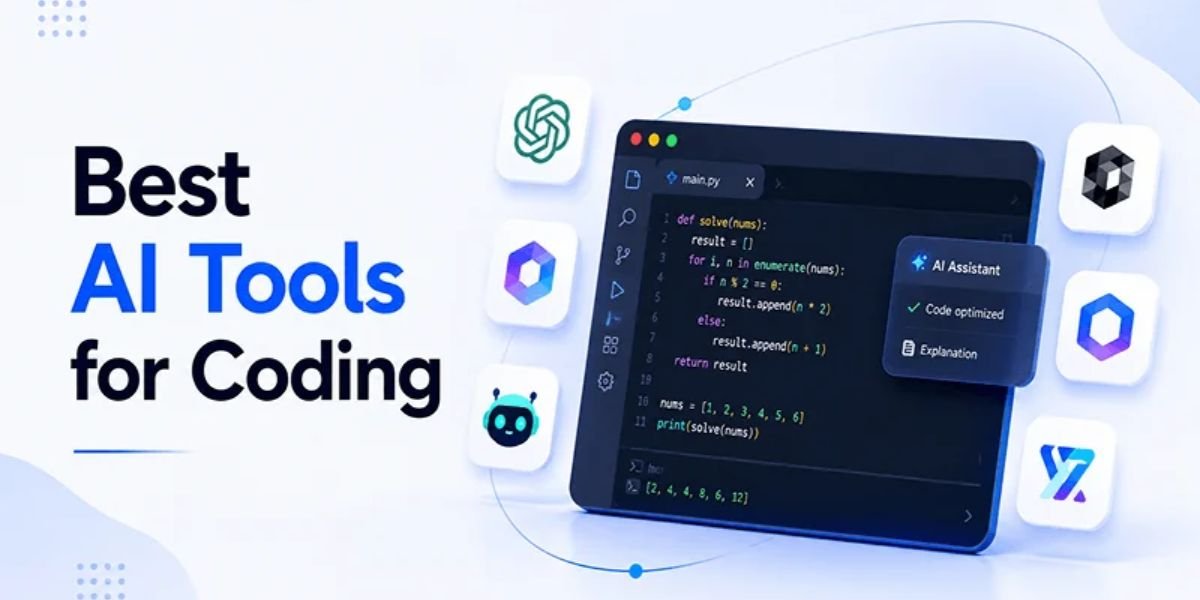
Debugging is one of the most important skills in software development, but it can also be one of the most frustrating tasks for beginners. A small coding mistake can cause an entire application to stop working. Sometimes, the error message is clear, but in other situations, developers spend hours trying to understand why their code is not producing the expected result. This is where AI-powered debugging tools can make a real difference.
Learning how to debug code with AI helps beginners identify errors, understand programming problems, and find possible solutions more quickly. Modern AI coding assistants can analyze code, explain error messages, suggest corrections, and help developers improve their programming skills. Instead of searching through countless websites for answers, beginners can use AI tools to get explanations based on their actual code.
In this beginner’s guide, you will learn how to debug code with AI, which AI tools can help, how to write effective debugging prompts, and what mistakes to avoid. Whether you are working with Python, JavaScript, React, PHP, or another programming language, AI can become a useful part of your debugging workflow.
What Is AI Code Debugging?
AI code debugging is the process of using artificial intelligence tools to identify, analyze, and fix errors in software code. These tools use large language models and other AI technologies to understand programming instructions, examine error messages, and recommend possible solutions.
Traditional debugging often requires developers to inspect code manually, add debugging statements, run tests, and investigate the source of an error. AI-assisted debugging can make this process easier by explaining what might be wrong and suggesting steps to investigate the problem.
For example, imagine you are writing a Python program and receive a NameError. If you are a beginner, you might not immediately understand what caused the issue. An AI coding assistant can explain that the error usually occurs when a variable or function is referenced without being defined in the current scope.
AI debugging is useful for several tasks:
- Identifying syntax and logical errors.
- Explaining confusing error messages.
- Finding potential bugs in existing code.
- Suggesting corrections and improvements.
- Reviewing code for common problems.
- Generating test cases.
- Explaining why a particular solution works.
However, AI does not guarantee that every suggested fix is correct. Developers should always review the recommended changes and test their code before using them in a real application.
Why Should Beginners Use AI for Debugging?
Learning programming involves making mistakes. Even experienced developers encounter unexpected errors, and beginners often struggle because they do not yet understand how programming languages handle different situations.
AI debugging tools can provide explanations in simple language, making technical problems easier to understand.
1. Understand Error Messages Easily
Error messages can look confusing when you are learning to code. Terms such as undefined variable, unexpected token, null reference, and type mismatch may not be familiar to new developers.
AI can translate these technical messages into simple explanations. You can paste an error message into an AI coding assistant and ask what it means, why it happened, and how to investigate it.
This helps beginners understand the reason behind an error instead of copying a solution without learning anything.
2. Find Bugs Faster
Manual debugging can take considerable time, particularly when a project contains multiple files and functions. AI can review the relevant code and point out suspicious sections.
For example, if a JavaScript function returns an unexpected result, an AI assistant may identify a missing condition, incorrect variable reference, or problem with asynchronous execution.
The suggestion still needs to be verified, but it can give you a useful starting point.
3. Learn Programming Concepts
AI debugging is not only about fixing errors. It can also help beginners understand programming concepts.
You can ask questions such as:
- Why is this function returning undefined?
- What is the difference between null and undefined?
- Why does my React component render twice?
- What causes an infinite loop?
- How does asynchronous JavaScript work?
These explanations can help you build programming knowledge while solving practical problems.
4. Improve Code Quality
AI tools can identify more than obvious errors. Depending on the tool and the code provided, they may also suggest improvements to readability, performance, maintainability, and error handling.
Beginners can use these suggestions to understand better coding practices and gradually improve their development skills.
Best AI Tools for Debugging Code

Several AI-powered tools can help developers identify and resolve coding problems. Some work directly inside code editors, while others provide conversational assistance through a browser or command-line interface.
Here are some popular options beginners can consider.
1. ChatGPT
<text>ChatGPT can explain programming errors, review code, suggest corrections, and help beginners understand debugging concepts. You can paste a code snippet and describe the problem in ordinary language.</text>
For example, you can ask ChatGPT to identify why a Python function is returning the wrong output. It can examine the supplied code, explain possible causes, and provide a corrected example.
Best for:
- Understanding programming errors.
- Debugging small and medium code snippets.
- Explaining complex programming concepts.
- Learning how a solution works.
- Reviewing code and suggesting improvements.
ChatGPT is particularly useful for beginners who want explanations alongside possible fixes. For larger projects, provide relevant files, dependencies, and reproduction steps rather than expecting an accurate diagnosis from a short code snippet.
2. GitHub Copilot
GitHub Copilot is an AI coding assistant designed to work with supported development environments. It can help developers write code, explain existing code, suggest improvements, and assist with debugging tasks.
Its editor integration makes it convenient for developers who want AI assistance without constantly switching between applications.
Best for:
- Debugging code inside an editor.
- Understanding existing functions.
- Generating code suggestions.
- Improving development workflows.
- Working with supported IDE integrations.
GitHub Copilot can save time during everyday development, but its suggestions should still be reviewed and tested.
3. Cursor
Cursor is an AI-powered code editor that helps developers understand and modify code. It can work with project context, making it useful when an error involves several related files.
For example, if a React application has a problem involving a component and an API service, Cursor can help investigate how those files interact.
Best for:
- Debugging multi-file projects.
- Understanding unfamiliar codebases.
- Finding related code.
- Making targeted code changes.
- Reviewing suggested fixes.
Beginners should ask Cursor to explain proposed changes before accepting them. This makes the debugging process more educational.
4. Claude
Claude can assist with code analysis, debugging explanations, and problem-solving. Developers can share code snippets, error messages, and relevant context to receive possible explanations and fixes.
It can be useful when a problem requires careful reasoning or when you want a detailed explanation of how different parts of a program work together.
Best for:
- Reviewing longer code snippets.
- Explaining complex errors.
- Analyzing programming logic.
- Suggesting alternative solutions.
- Understanding unfamiliar code.
5. Windsurf
Windsurf is an AI-powered development environment designed to support coding workflows. It can help developers understand project context, generate code, and work through programming problems.
Its AI-assisted features may be useful when debugging requires examining multiple parts of an application.
Best for:
- AI-assisted development.
- Understanding project structure.
- Working with multiple files.
- Investigating code issues.
- Improving coding productivity.
The right tool depends on your programming experience, preferred editor, project size, and budget. You do not need to use every AI coding assistant. Start with one tool and learn how to use it effectively.
How to Debug Code With AI: Step-by-Step Guide
You do not need advanced programming knowledge to begin using AI for debugging. Following a structured process can help you explain problems clearly and evaluate the solutions you receive.
Step 1: Identify the Coding Problem
Before asking AI to fix your code, identify what is going wrong.
Ask yourself:
- Is the program showing an error?
- Is the application crashing?
- Is the output incorrect?
- Is a button or function not working?
- Does the problem happen every time?
- Did the issue begin after a recent code change?
Understanding the problem makes it easier to provide useful information to an AI assistant.
For example, instead of saying, “My JavaScript is broken,” explain that clicking a button does not update the displayed counter.
A clear problem description gives AI a better starting point.
Step 2: Collect the Error Message
When a program produces an error, copy the complete message whenever possible.
An error message may contain important information, including:
- Error type.
- File name.
- Line number.
- Function name.
- Stack trace.
- Related system or browser information.
For example, a JavaScript error might look like this:
TypeError: Cannot read properties of undefined (reading 'name')This message suggests that the code is trying to access the name property of a value that is currently undefined.
Share the complete error message with your AI tool. Avoid removing important details because they may help identify the actual cause.
Step 3: Share the Relevant Code
After collecting the error message, provide the code related to the problem.
For example, consider this JavaScript code:
function getUserName(user) {
    return user.name;
}

console.log(getUserName());
The function expects a user object, but it is called without an argument. As a result, JavaScript cannot read the name property from an undefined value.
You can ask an AI assistant to explain the problem and recommend a safe correction.
A possible solution is:
function getUserName(user) {
    if (!user) {
        return "Guest";
    }

    return user.name;
}

console.log(getUserName());
The function now checks whether a user object exists before trying to access its property.
Step 4: Write a Clear AI Debugging Prompt
The quality of an AI response often depends on the information you provide. A vague prompt may produce a generic answer, while a detailed prompt can help the tool focus on the actual issue.
A useful debugging prompt should include:
- Programming language or framework.
- Relevant code.
- Complete error message.
- Expected behavior.
- Actual behavior.
- What you have already tried.
Here is a practical prompt you can copy:
I am a beginner working with JavaScript.

Please help me debug the following code.

Code:
[Paste your code here]

Error message:
[Paste the complete error message]

Expected result:
[Explain what should happen]

Actual result:
[Explain what is happening]

Please:
1. Identify the likely cause of the error.
2. Explain the problem in simple language.
3. Provide corrected code.
4. Explain each important change.
5. Suggest how I can test the solution.

Do not rewrite the entire program unless necessary.
This format helps an AI assistant understand the problem and provide a more useful explanation.
Step 5: Understand the Suggested Fix
Do not immediately copy and paste the code suggested by AI.
First, understand what the solution changes. Ask follow-up questions if something is unclear.
For example:
- Why did this error happen?
- Which line caused the problem?
- Why is this condition necessary?
- Is there another way to solve it?
- Could this change create another issue?
Understanding the correction is important because the same type of problem may appear in future projects.
Step 6: Apply the Fix Carefully
Once you understand the recommendation, make the change in your development environment.
If possible, modify only the relevant section instead of replacing the entire program. Small changes make it easier to identify whether the solution actually works.
For larger projects, save a copy or use version control before making significant changes. This gives you a way to return to the previous version if the suggested fix causes new problems.
Step 7: Run and Test Your Code
After applying the fix, run the program again.
Check whether:
- The original error has disappeared.
- The expected output is correct.
- Related features still work.
- The application behaves properly with different inputs.
- No new errors have appeared.
If the issue remains, share the new error message and explain what changed.
AI debugging often works best as a repeated process of testing, reviewing, and improving.
Step 8: Ask AI to Explain the Final Solution
Once the problem is resolved, ask the AI assistant to explain the final code.
This step helps turn a debugging session into a learning opportunity.
You can ask for a simple explanation of the corrected function, the programming concepts involved, and ways to prevent the same issue in the future.
Over time, this approach can help you become more confident at debugging without depending entirely on AI.
Practical Examples of Debugging Code With AI

The best way to understand AI debugging is to look at common programming problems. The following examples show how beginners can use AI to investigate errors in different languages.
Example 1: Debugging a Python Error
Consider this Python code:
numbers = [10, 20, 30]

print(numbers[3])
The code attempts to access the fourth item in a list that contains only three items. Python uses zero-based indexing, so the valid positions are 0, 1, and 2.
The result is an IndexError.
You can ask AI:
“Why am I getting an IndexError in this Python code? Explain the problem and show me how to fix it safely.”
A corrected example is:
numbers = [10, 20, 30]

if len(numbers) > 3:
    print(numbers[3])
else:
    print("The requested position does not exist.")
This solution checks the list length before accessing the requested position.
Example 2: Debugging a JavaScript Error
Consider the following code:
let total = 100;

function calculateTotal() {
    console.log(totals);
}

calculateTotal();
The variable is named total, but the function refers to totals. JavaScript treats these as different variable names.
This produces a ReferenceError.
A corrected version is:
let total = 100;

function calculateTotal() {
    console.log(total);
}

calculateTotal();
AI can help identify spelling mistakes, incorrect variable names, and other common programming errors.
Example 3: Debugging a React Component
Consider this React component:
function UserProfile({ user }) {
    return (
        <div>
            <h2>{user.name}</h2>
        </div>
    );
}
If the user property is missing or undefined, the component may produce a runtime error.
A safer version is:
function UserProfile({ user }) {
    if (!user) {
        return <p>Loading user information...</p>;
    }

    return (
        <div>
            <h2>{user.name}</h2>
        </div>
    );
}
This example checks whether user information exists before rendering the name.
In a real application, you may also need to handle loading, error, and empty states separately. AI can help explain these situations and suggest an appropriate component structure.
Example 4: Debugging a PHP Error
Suppose you have the following PHP code:
<?php

$name = "John";

echo $names;

?>
The variable is declared as $name, but the code tries to display $names. These are two different variables.
A corrected version is:
<?php

$name = "John";

echo $name;

?>
You can ask AI to identify the variable mismatch and explain how PHP handles undefined variables.
These examples show how AI can help with common errors across different programming languages.
Best Practices for Writing Effective AI Debugging Prompts
A good prompt can make a significant difference in the quality of debugging assistance. Instead of asking AI to fix everything, explain the problem and request a focused solution.
Provide Enough Context
Always explain what you are trying to build and where the problem occurs. For example, mention whether you are developing a website, mobile application, API, or desktop program.
If the issue involves a framework such as React or Next.js, include its name and relevant version when known.
Include the Complete Error Message
Do not share only the first line of an error if the remaining stack trace contains useful information.
The complete message may reveal which function, file, or operation caused the problem.
Explain Expected and Actual Results
AI needs to understand the difference between what should happen and what is happening.
For example:
Expected result: Clicking the submit button should save the form data.
Actual result: The button responds, but no information appears in the database.
This explanation provides more useful context than simply saying the form does not work.
Ask for Step-by-Step Explanations
Beginners should ask AI to explain each important correction in simple language.
This helps you understand the logic instead of becoming dependent on automatically generated code.
Request Minimal Changes
Ask AI to fix the specific issue without rewriting unrelated parts of your application.
Large code changes can introduce new bugs and make it difficult to understand which modification solved the original problem.
Common Mistakes to Avoid When Using AI for Debugging
AI debugging can be helpful, but beginners should understand its limitations. Using AI without checking its recommendations can create additional problems.
1. Copying Code Without Understanding It
One of the most common mistakes is copying a suggested solution without understanding how it works.
A solution may remove the visible error while creating a different problem elsewhere.
Always review the code and ask AI to explain the changes.
2. Providing Incomplete Information
If you share only a small part of the code without the error message or expected behavior, the AI tool may make assumptions.
Provide relevant context, including the framework, dependencies, and steps required to reproduce the issue.
3. Trusting Every AI Suggestion
AI-generated answers can contain incorrect assumptions, outdated methods, or code that does not match your project.
Treat recommendations as suggestions rather than guaranteed fixes.
Check official documentation and run appropriate tests before accepting important changes.
4. Ignoring Security Problems
Some debugging suggestions may introduce security weaknesses.
For example, an AI assistant might recommend disabling authentication checks to make an application work during testing. That could expose sensitive functionality if the change reaches production.
Never remove security controls simply to hide an error. Review authentication, authorization, input validation, and data handling carefully.
5. Sharing Sensitive Information
Avoid pasting passwords, API keys, private tokens, customer information, or confidential business data into AI tools.
Before sharing code, remove sensitive information and replace it with safe example values.
6. Changing Too Many Things at Once
Making several unrelated changes simultaneously makes debugging harder.
Change one relevant part, run the program, and observe the result. This helps you identify which modification caused an improvement or introduced a new issue.
How AI Debugging Works With Different Programming Languages

AI coding assistants can support many popular programming languages. However, the usefulness of their suggestions depends on the quality of the supplied code, the complexity of the issue, and the tool’s capabilities.
Python
AI can help identify indentation errors, incorrect data types, missing imports, list indexing problems, and exceptions.
It can also explain Python tracebacks and suggest test cases.
JavaScript
JavaScript debugging often involves variable scope, asynchronous operations, promises, event handling, and browser errors.
AI can explain common issues involving undefined values, incorrect conditions, and unexpected function results.
React
React developers can use AI to investigate component errors, state management problems, incorrect props, rendering issues, and hook-related mistakes.
For accurate suggestions, provide the relevant component, related hooks, and the exact error message.
PHP
AI can help investigate syntax errors, undefined variables, database connection problems, incorrect function usage, and server-side exceptions.
For database-related problems, include the relevant query and error details while removing passwords and other sensitive information.
HTML and CSS
AI can assist with layout issues, responsive design problems, incorrect selectors, missing attributes, and browser compatibility questions.
For visual problems, explain what the page should look like and what is currently appearing.
AI Debugging vs. Traditional Debugging
AI debugging and traditional debugging are not competing approaches. They work well together.
Traditional debugging relies on tools and techniques such as breakpoints, browser developer tools, logs, test suites, and manual code inspection. AI adds another layer of assistance by explaining errors and suggesting possible solutions.
| Feature | Traditional Debugging | AI-Assisted Debugging |
|---|---|---|
| Error investigation | Manual inspection | AI-supported analysis |
| Error explanations | Developer research | Conversational explanations |
| Code suggestions | Written manually | AI-generated suggestions |
| Testing | Developer-run tests | AI can suggest tests |
| Learning support | Documentation and practice | Interactive explanations |
| Accuracy | Depends on developer and tools | Suggestions require verification |
| Project understanding | Built through inspection | Can use supplied project context |
Traditional debugging remains essential because developers need to verify what their programs actually do. AI can make investigation faster, but it does not replace testing, careful reasoning, or technical knowledge.
How to Verify AI-Generated Code Fixes
Verifying a suggested correction is one of the most important parts of AI debugging. A code change is not complete simply because the error message disappears.
Run Unit Tests
Unit tests check whether individual functions or components produce the expected results.
For example, if AI suggests changing a calculation function, test it with normal inputs, empty values, and unexpected values.
Perform Integration Testing
Integration tests help verify whether different parts of an application work together correctly.
This is particularly useful when a fix affects an API, database, authentication system, or multiple application components.
Review the Code Changes
Read the suggested changes before accepting them.
Check whether the solution introduces unnecessary dependencies, removes important validation, changes existing functionality, or creates security concerns.
Test Edge Cases
A solution that works with one example may fail with different inputs.
Test empty values, invalid data, large inputs, missing properties, and other situations relevant to your application.
Use Version Control
Git and other version control systems help developers track code changes and restore previous versions when necessary.
Before accepting a significant AI-generated change, consider creating a commit or working on a separate branch.
Can AI Debug Code Without Programming Knowledge?
AI can help people with limited programming experience understand simple errors, but it cannot replace the need to learn basic programming concepts.
Beginners can use AI to understand error messages, correct common syntax mistakes, and follow step-by-step explanations. However, more advanced problems require knowledge of variables, functions, data structures, application architecture, and testing.
Start by learning the fundamentals of one programming language. Then use AI to explain errors and guide you through practical exercises.
For example, if you are learning Python, ask AI to explain why a loop is not working rather than simply requesting a corrected program.
This approach helps you develop problem-solving skills and become more independent over time.
The Future of AI-Powered Code Debugging
AI-powered debugging is becoming an important part of modern software development. Coding assistants are increasingly able to work with larger project contexts, explain code, suggest edits, and support testing workflows.
Developers can use these capabilities to investigate problems across multiple files and understand how different components interact.
Future improvements may include more advanced automated test generation, better identification of recurring bugs, improved code review assistance, and stronger integration with development environments.
However, human review will remain important. Software development involves decisions about performance, security, reliability, and user experience that require careful judgment.
The most effective approach is to combine AI assistance with programming fundamentals, reliable testing, and a clear understanding of the application.
FAQs:
1. What is the best AI tool for debugging code?
ChatGPT, GitHub Copilot, Cursor, Claude, and Windsurf are popular options for AI-assisted debugging. The best choice depends on your programming language, project size, preferred editor, and budget. Beginners may find conversational tools useful because they can explain errors in simple language.
2. Can ChatGPT find errors in my code?
Yes. You can provide ChatGPT with a code snippet, error message, and description of the expected result. It can identify possible problems, explain the cause, and suggest corrections. However, you should test every suggested fix before using it.
3. Can AI debug Python code?
Yes. AI coding assistants can help investigate Python syntax errors, indentation problems, exceptions, incorrect variables, list indexing issues, and logical errors. They can also explain Python tracebacks and suggest test cases.
4. Can AI debug JavaScript and React applications?
Yes. AI tools can assist with JavaScript errors, React component problems, incorrect props, state management issues, and asynchronous code. Providing relevant components, error messages, and framework details can improve the quality of suggestions.
5. Is AI debugging suitable for beginners?
Yes. AI debugging can be useful for beginners because it explains technical errors and provides examples of possible solutions. It can also help new developers understand programming concepts while working on real projects.
6. Can AI automatically fix all coding errors?
No. AI cannot guarantee that every error will be identified or corrected. Some problems depend on the runtime environment, external services, database configuration, or information that has not been provided. Developers must verify suggestions through testing and code review.
7. How do I ask AI to fix my code?
Provide your programming language, relevant code, complete error message, expected result, and actual result. Then ask AI to explain the cause, suggest a minimal correction, and describe how to test the solution.
8. Is AI debugging better than manual debugging?
AI debugging can make certain tasks faster by explaining errors and suggesting possible fixes. Manual debugging remains important for verifying program behavior, using breakpoints, analyzing logs, and testing complex applications. Combining both approaches is generally more effective.
9. Can AI find logical errors in code?
AI can sometimes identify logical errors by reviewing the code and comparing its behavior with your expected result. However, logical errors can be difficult to detect without a clear explanation of the intended functionality and suitable test cases.
10. Is it safe to share code with AI tools?
You should avoid sharing passwords, API keys, private tokens, personal information, and confidential business data. Review the privacy and data-handling settings of your chosen tool before sharing sensitive project information.
Must Read:
- Best AI Tools for React and JavaScript Development
- Best AI Tools for Automated Coding and Software Development
- HTML, CSS, and JavaScript: How to Build a Website From Scratch With AI
Final Thoughts:
Learning how to debug code with AI can make programming easier, especially when you are just starting. AI coding assistants can explain confusing errors, identify possible bugs, suggest corrections, and help you understand programming concepts across languages such as Python, JavaScript, React, and PHP.
The most effective way to use AI debugging is to follow a structured process. Identify the problem, collect the error message, share the relevant code, write a clear prompt, review the suggested fix, and test the result.
Remember that AI is an assistant, not a replacement for programming knowledge. Do not accept every suggestion without checking it. Learn why an error happened, understand how the correction works, and test your application carefully.
By combining AI tools with regular coding practice, beginners can improve their debugging skills, solve programming problems more confidently, and build better software over time.